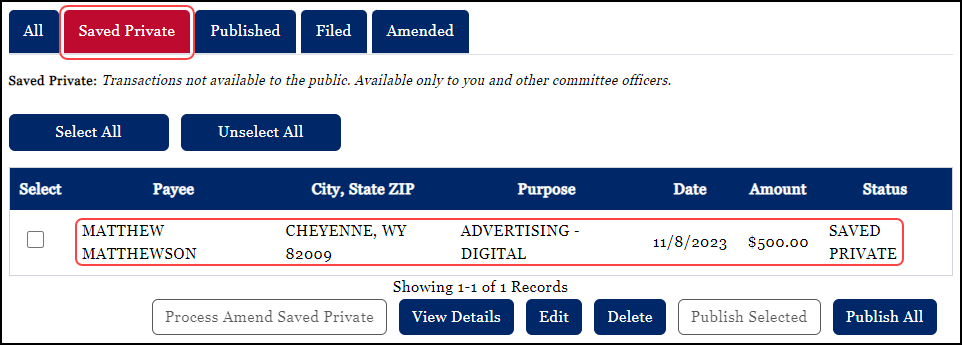
Publish an Expenditure
To Publish a transaction:
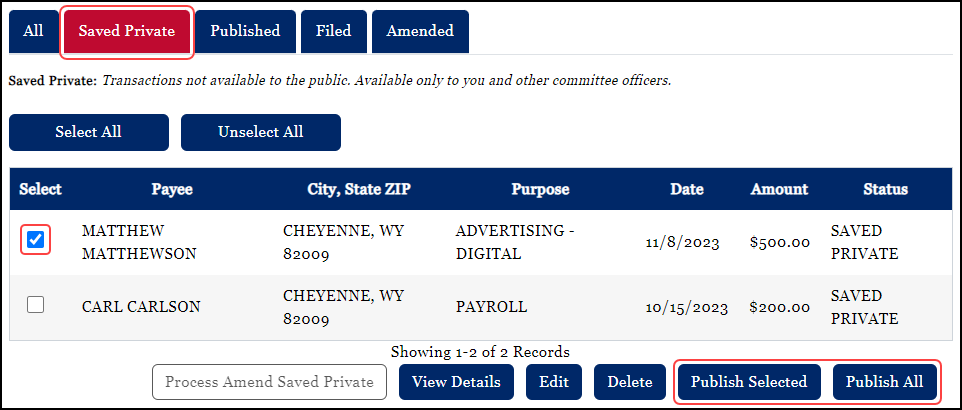
•Select the transaction(s) under the Saved Private tab by clicking in the Select checkbox for specific transactions. If you want to publish all Saved Private items, you need not select any transactions; you can simply use the Publish All option.
•Once you have selected specific items you may choose to Publish Selected.
•Published means that the transaction has been made available to the public to view PRIOR to the official filing being made public. Published transactions may be edited by being moved back to Saved Private, via the Unpublishing process, and selected for modification. The transactions may then be published again, if need be.
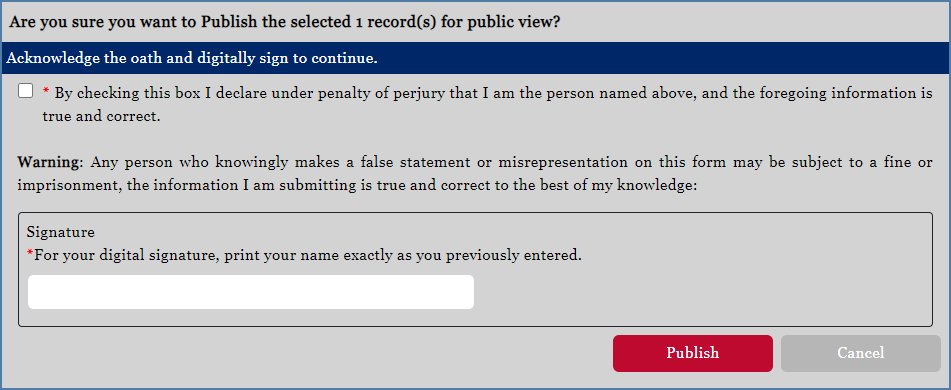
Once the Publish Selected or Publish All option is selected, the user is presented with the oath and signature pop-up. Be sure to read the oath and check the box before affixing the typed signature. For committees and organizations, the action of publishing requires approval by both individuals affiliated with the committee or organization before it is made public.
Unpublish an Expenditure
It may be necessary to unpublish a published expenditure in order to correct or modify information.
To Unpublish a transaction:
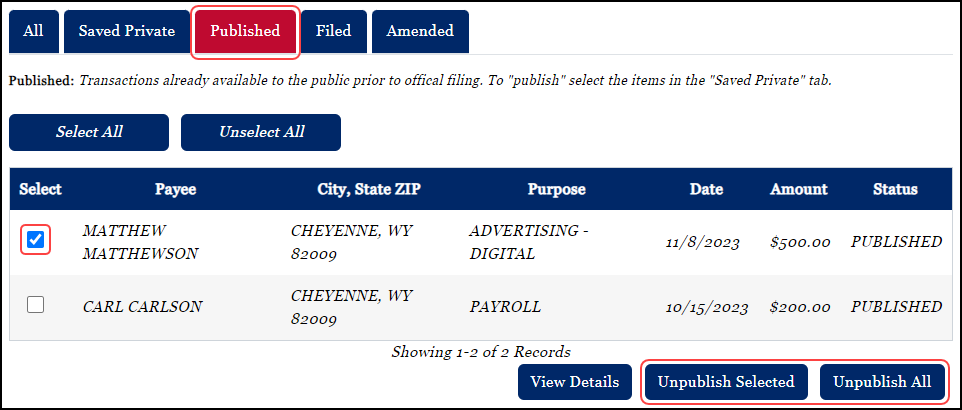
•The Unpublish Selected button is inactive until one of the expenditures is selected by clicking on the Select check box for the record.
•Select the transaction(s) under the Published tab by clicking in the Select checkbox for specific transactions. If you want to unpublish all Published items, you need not select any transactions; you can simply use the Unpublish All option.
•Once you have selected specific items you may choose to Unpublish Selected.
Once the Unpublish Selected or Unpublish All option is selected, the user is presented with an information pop-up. Like the Publishing process, Unpublishing does require approval by both individuals affiliated with a committee or organization. To send the transactions to the second user for approval, click Yes.
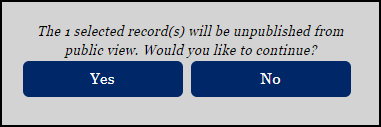
Once the second user has approved the unpublishing, the previously Published transactions will appear in the Saved Private tab.