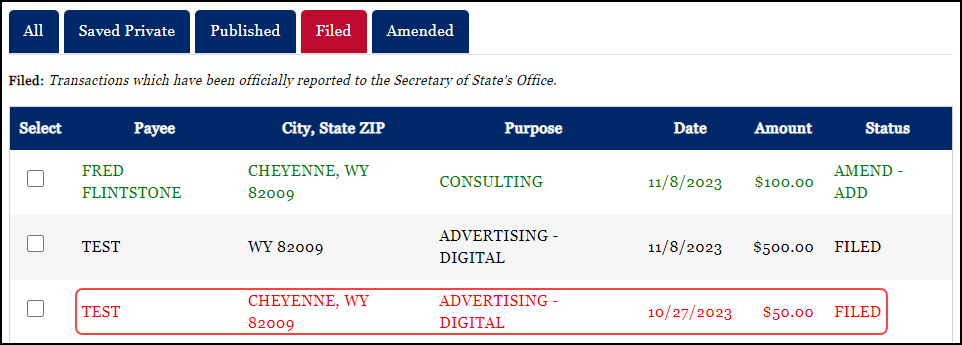
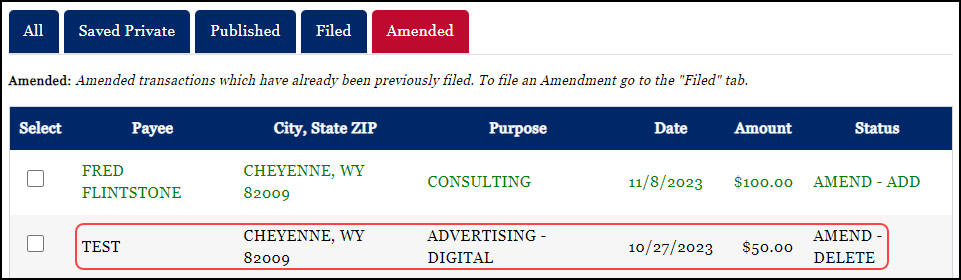
Amended transactions are those transactions which modify an already Filed report by either adding or deleting transactions. For committees and organizations, the action of amending requires approval by both individuals affiliated with the committee or organization.
There are two types of amended transactions: Amend-Add and Amend-Delete.
Amend-Add
WYCFIS automatically determines which expenditures entered into the system are to be included in a specific reporting period based on transaction date.
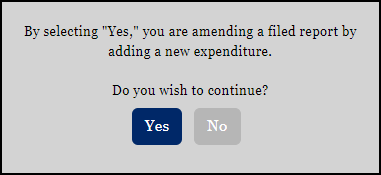
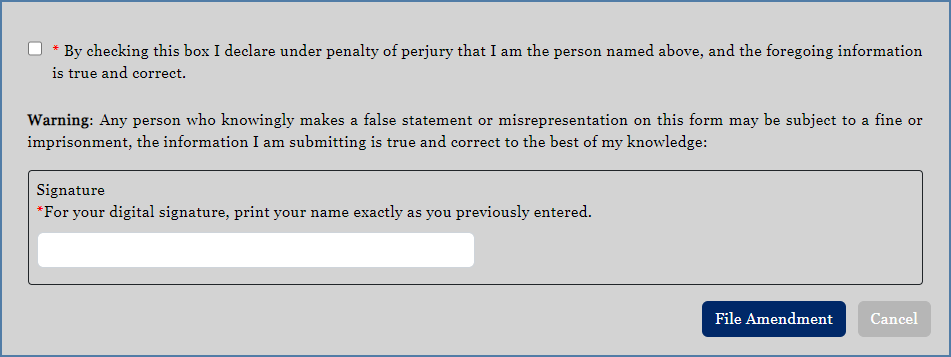
Given that, to add an amendment, select Add Expenditure. Users will then enter the transaction as usual. When the transaction is saved, the system will recognize it as an amendment to a Filed report and will ask if the user wants to amend that filing. Users are then prompted to affix their digital signature after reading and acknowledging the oath.
Now when an expenditure search is conducted, the new amended expenditure is included in the results.
IMPORTANT: Amend-Add transactions must be entered directly into WYCFIS. Amend-Add transactions may not be uploaded via the Upload Data Files link.
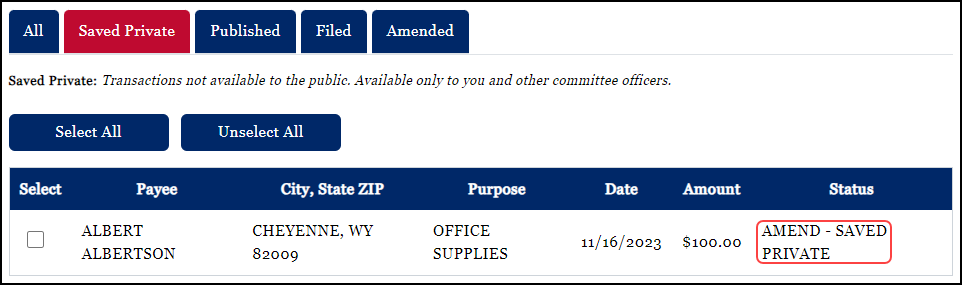
Candidate Committees, PACs, and Organizations: If Amend-Add transactions on a Filed report are Rejected by the second user (usually occurring because of an error), the transactions are saved within the application with a status of Amend - Saved Private and can be found on the Saved Private tab under View Expenditures.
Amend-Delete
If an error is found in a transaction which has already been Filed, that transaction should be selected from the Filed tab under View Expenditures. The Amend – Delete button should then be chosen. The user will be presented with the acknowledgment and oath which must be completed prior to finalization. Once deleted, the transaction remains in the system, but appears in red to indicate that it has been deleted. The user can enter a correct transaction by simply using the usual and customary process for adding a transaction.