IMPORTANT: Account holders DO NOT need to publish any transactions before filing a report. The Publish functionality is simply provided for account holders to make their campaign finance information available to the public in advance of statutory filing periods, thereby providing transparency.
To meet statutory requirements, users must submit their final campaign finance reports to the Secretary of State’s Office by specific deadlines. The File Report link provides you with that ability. Filing deadlines for each report are listed in the Upcoming Reporting Deadlines WYCFIS matrix on the Home page and also appear in the account Message Center. The start date and filing deadlines also appear on the File Report home page as illustrated below.

On the File Report Home Page users can also see the number of contribution and expenditure transactions associated to the report being filed as illustrated above. Users may also choose to print the Draft Report prior to filing.
IMPORTANT: If two signatures are required for filing a required report, both signatures must be obtained electronically before the report is considered Filed. The system will assist the user in this process.
NOTE: WYCFIS will automatically determine which contributions and expenses entered into the system, based on transaction date, are to be included in a specific reporting period.
File Report Process
Once the user has navigated to the File Report screen, they should select the report they are wishing to file. If a user attempts to file a report for which the Filing Start date has not occurred, WYCFIS will notify the user that the report cannot be filed at this time.

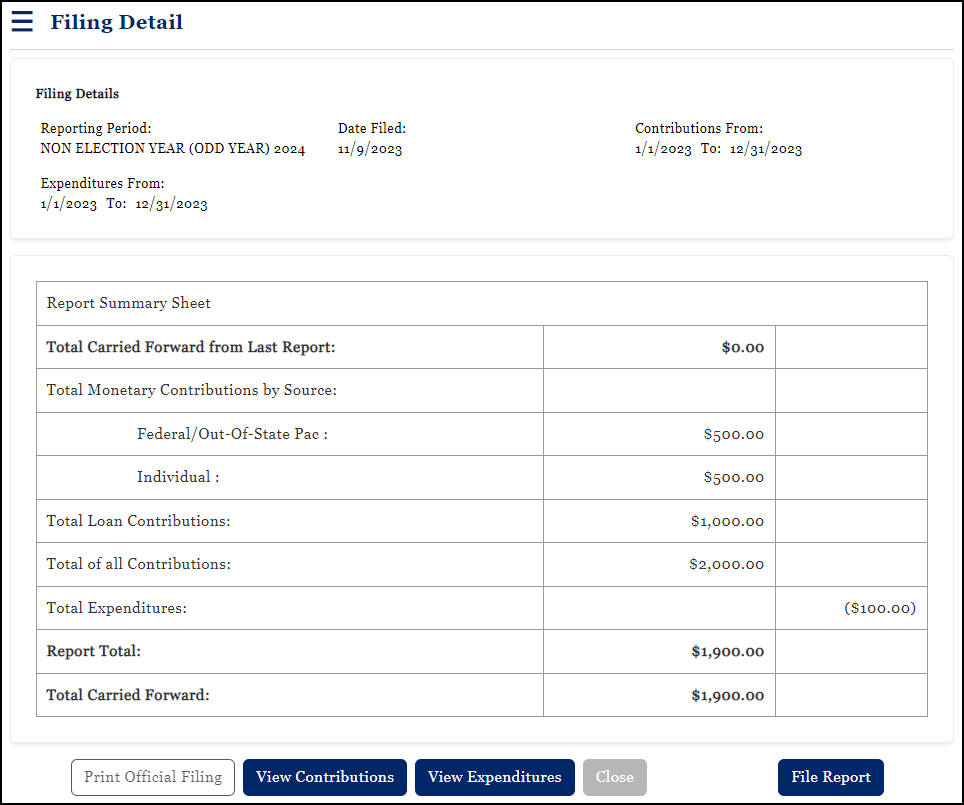
Once the user has selected an appropriate report for filing, they should select the Continue with Filing Process option on the File Report Home Page. The Filing Detail screen opens showing the Filing Details and Summary Sheet for the report being filed.
IMPORTANT: There may be instances where the report being filed has no contributions or expenditures associated to it. In this case, once the report has been selected, the user will be prompted to acknowledge the fact that they are reporting all zeros. The user must check the box prior to continuing to the next screen.

Users may choose View Contributions and/or View Expenditures to see the specific contributions and expenditures associated to the report being filed.
IMPORTANT: The ability to Print Official Filing will become available only after the report has been filed. If two signatures are required for filing a required report, both signatures must be obtained electronically before the report is considered Filed. Only after both signatures have been obtained can the official filing be printed.
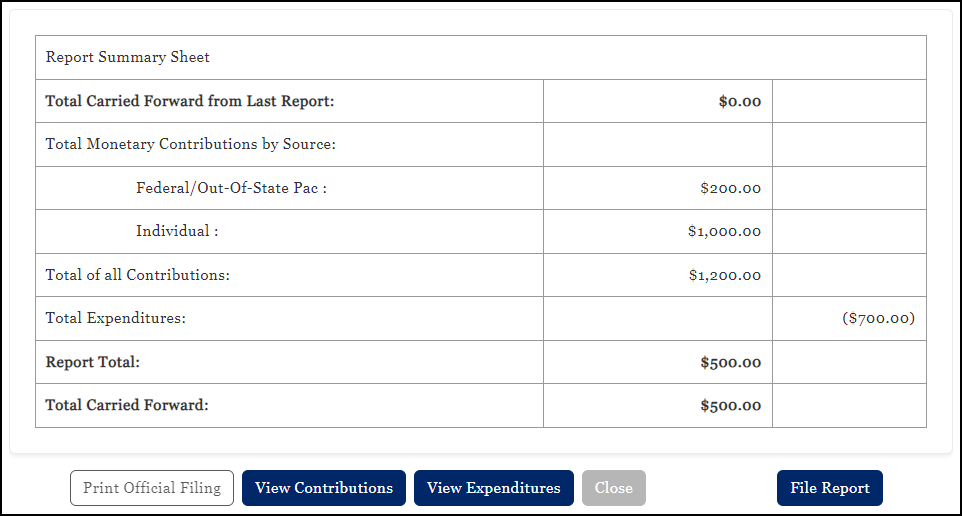
When the user is ready, they should click File Report to continue. The oath and digital signature screen opens requiring the user to acknowledge the oath and affix their typed/digital signature.
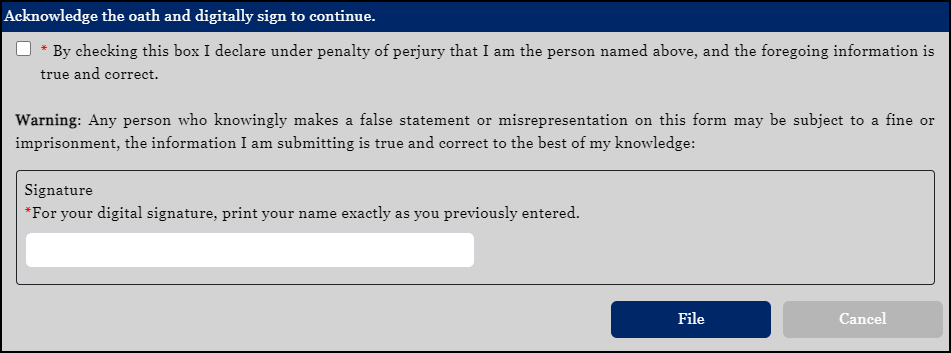
Once the user has affixed their digital signature, they should click File to complete the process. Remember - if two signatures are required for filing a required report, both signatures must be obtained electronically before the report is considered Filed. The system will assist the user in this process.
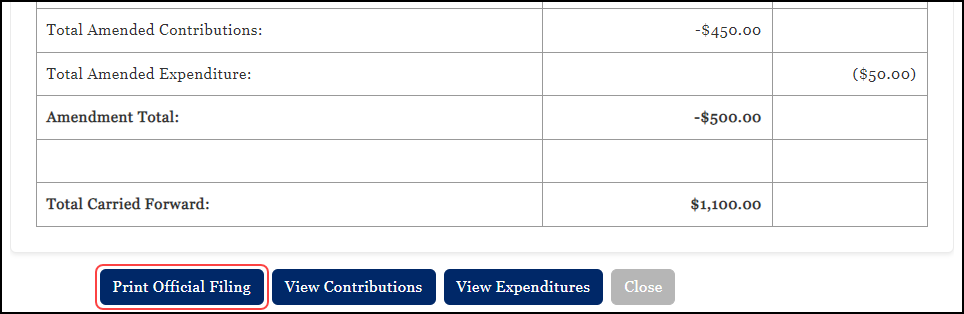
Once the report is Filed, the Print Official Filing option becomes available. In addition, the Filed Report can be verified by browsing to the Filing History option in the left-hand navigation.