To begin the process of adding expenditures, click the Add Expenditures link from the Dashboard or from the Left-Hand Menu.

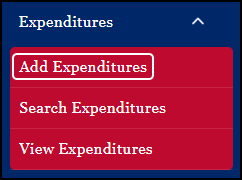
Once selected, the Add Expenditures screen opens.

Adding expenditures requires the user to select a Purpose for the expenditure. Common Purposes are provided in the drop down list.
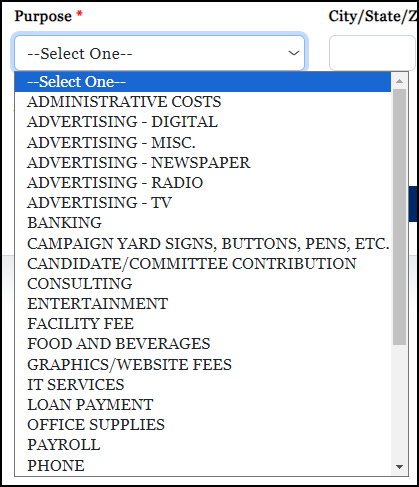
If the Purpose is not listed in the drop down list, select Other and then add a New Purpose.

Once data entry is complete, the user simply selects Save. The expenditure can then be found by Searching for all expenditures from the Manage Expenditures main screen.