The following instructions walk you through the details associated to creating a Wyoming Campaign Finance Information System Political Action Committee (PAC) account.
The PAC Account Details screen opens with useful information on the process and a Click here to view ... link that can be used to access more details on the pertinent statutes.

You will also find filing deadline information on this introductory page. When you are finished reviewing the information on this page, click Continue.
Step 1. PAC Information
Enter the required information in the fields and drop-down lists.
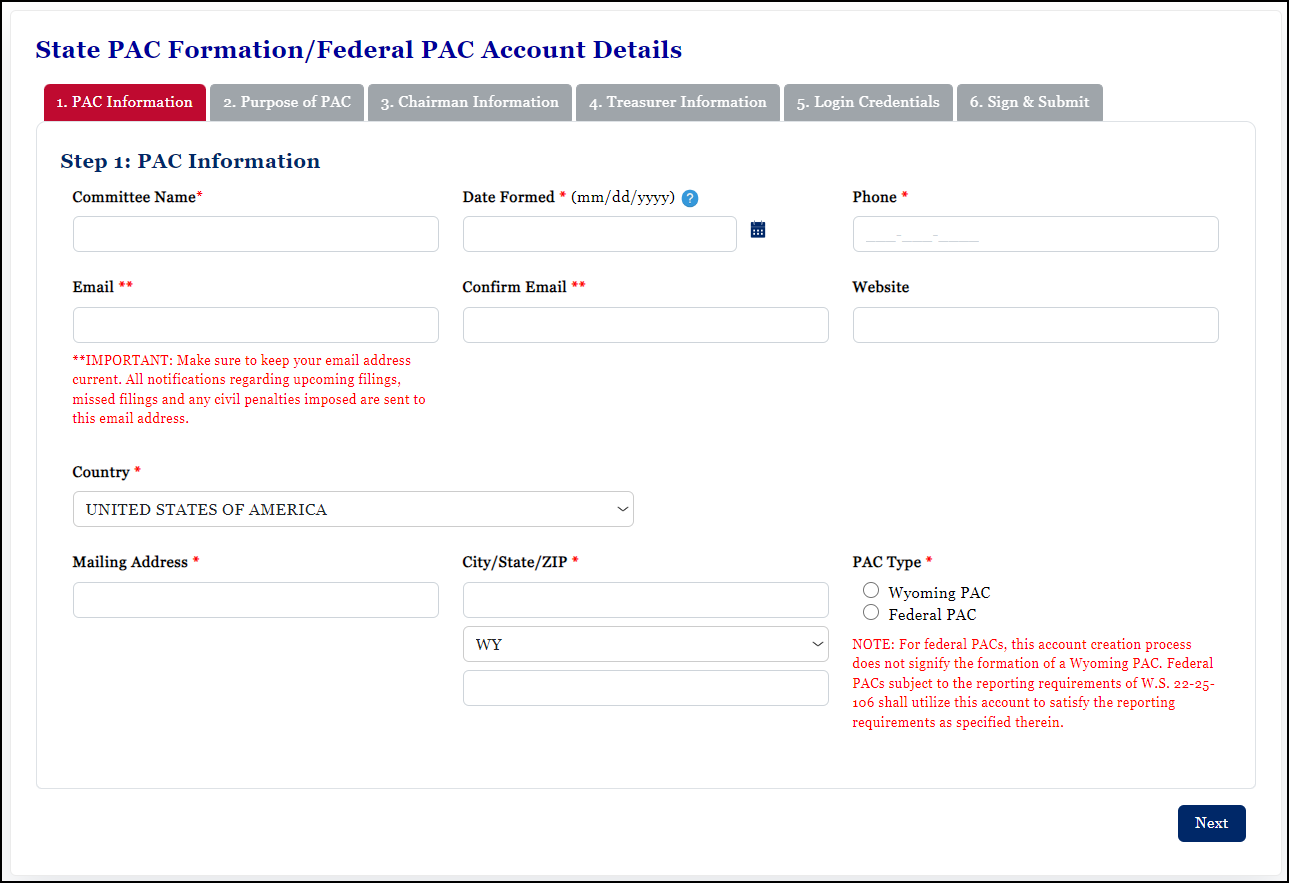
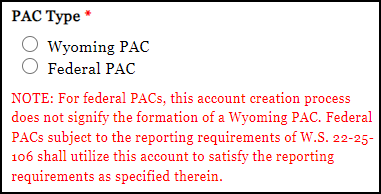
If you are forming a Wyoming PAC, under PAC Type, select Wyoming PAC. If you are creating a WYCFIS account for the purposes of satisfying federal PAC reporting requirements in Wyoming, select Federal PAC.
Once you have entered information into the required fields, click Next.
Step 2. Purpose of PAC
Place a check mark in the applicable option. Federal PAC accounts are not required to declare a PAC purpose and can continue by clicking Next without checking a box if they choose.

As you mark your options, additional fields are provided based on your selection.

If you select Support / Oppose Specific Candidate(s) or Ballot Issue(s) you must choose whether you are supporting or opposing candidates or ballot issues. Next, you must select and move the item(s) to the Support or Oppose box. If a candidate does not appear in the list, you are able to enter a candidate.
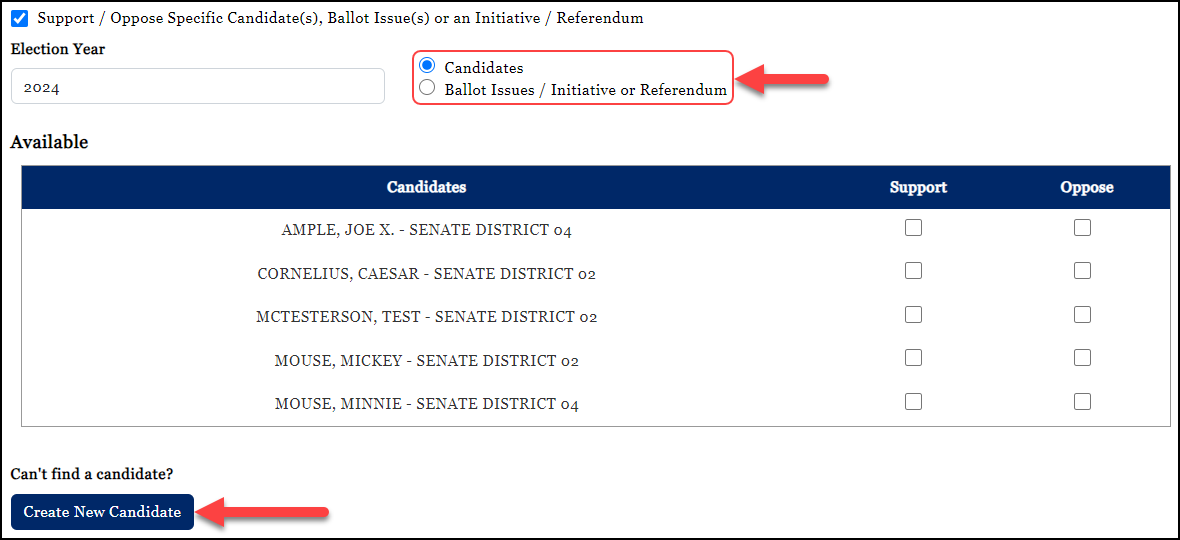
Complete the required information and then click Next.
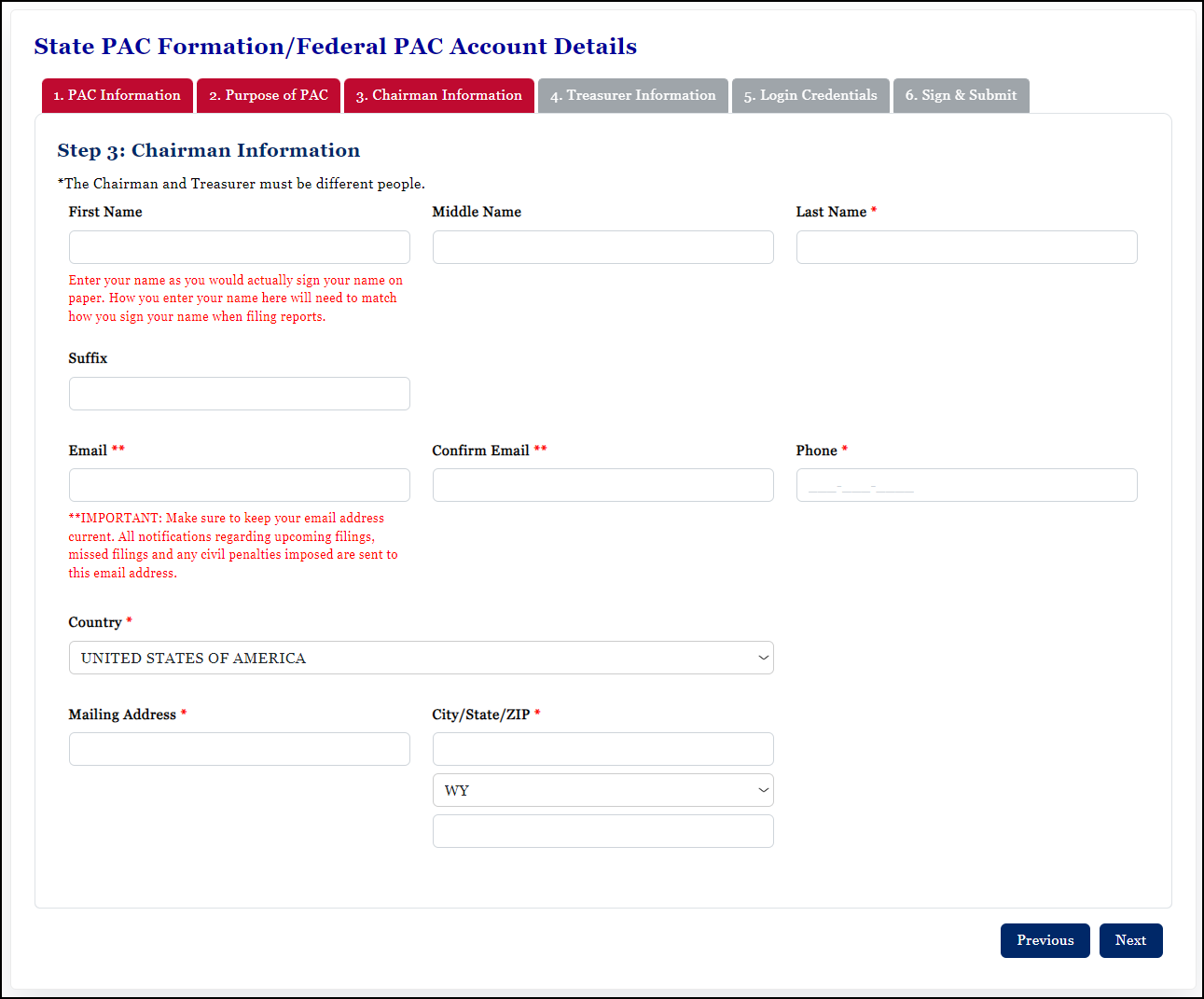
Step 3. Chairman Information
Enter the committee chairman's information on this screen and click Next.
IMPORTANT: Please be sure to enter the name of the Chairman as they would actually be signing their name on paper.
Step 4. Treasurer Information
Enter the committee treasurer's information on this screen and click Next.
IMPORTANT: Please be sure to enter the name of the Treasurer as they would actually be signing their name on paper.

Step 5. Login Credentials
When the screen opens, select your role in the PAC.
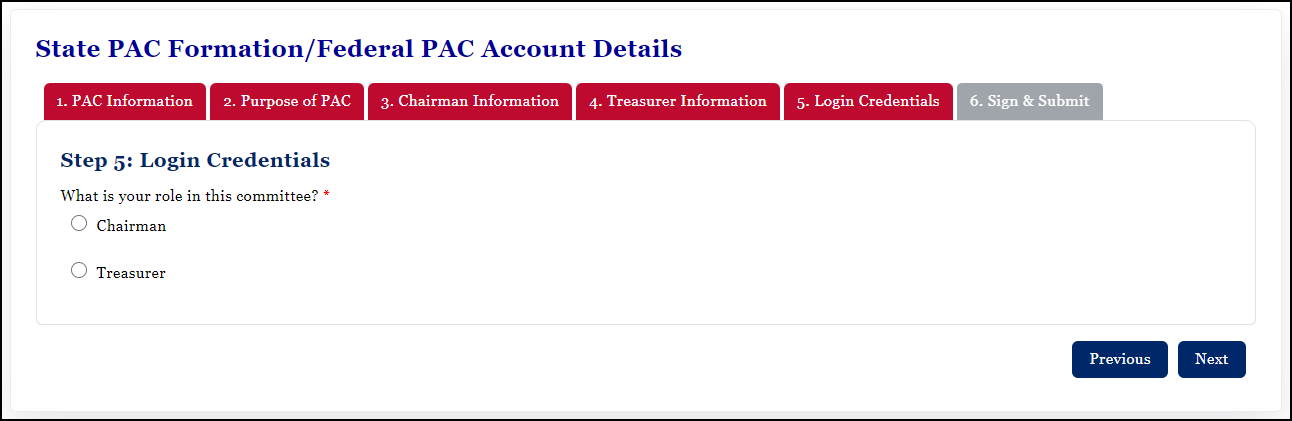
Depending on your selection, the appropriate fields will be provided.If you are not yet registered in WYCFIS. Enter the required information, key in the numeric code, and click Next. IMPORTANT: The answers to the security questions are case sensitive.
If you are the Treasurer, you must enter a temporary username for the Chairman; if you are the Chairman, you must enter a temporary username for the Treasurer..

If You Are Already a Registered User
If you are already registered, click the "Are you already registered? Click Here" link. Enter your username and password in the fields of the pop-up screen. Click Validate.

If you are successfully validated, your username is automatically entered and the Security Questions and Answers fields are inactivated.
Enter the security code and click Next.
Step 6. Sign & Submit
Read and / or Print the Account Holders Terms and Condition. Then, read the oath and check the oath checkbox, enter your digital signature and click Finish.

If the account is submitted successfully, the Submission Complete message is displayed.
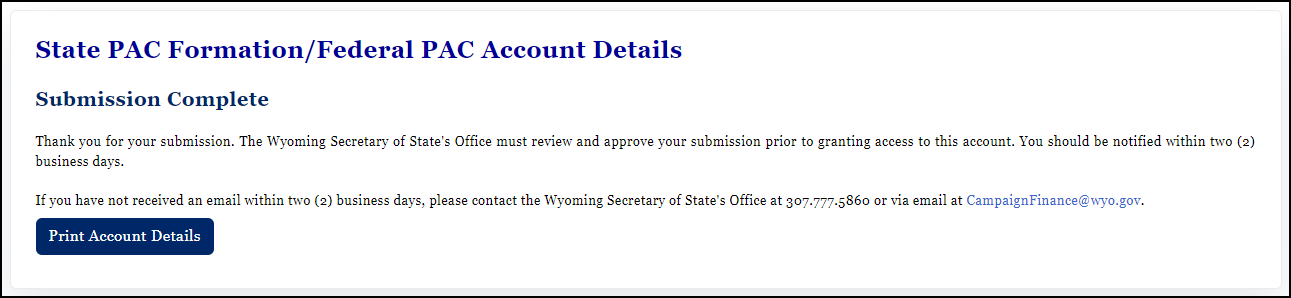
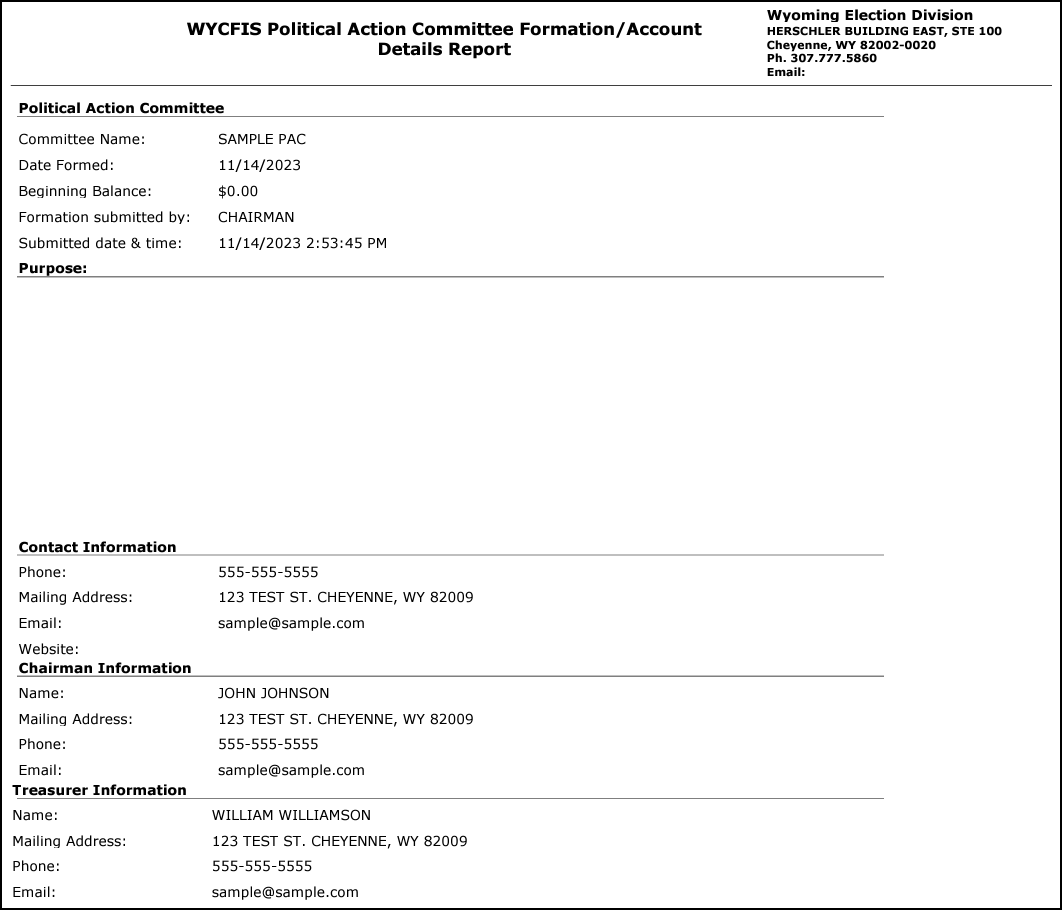
Click Print Account Details for a printable copy of your submission.
Once approved by the Secretary of State's Office, temporary passwords are created for both the chairman and treasurer of the PAC and are sent via email. The first time they login using the temporary password, the Password Reset screen opens requiring them to reset their password to one of their choice. If these individuals are already registered and have permanent passwords, the temporary password is not needed or issued by the system.

When the second committee officer logs in, they will first be asked to enter a username of their choice (if they so choose). In addition, the second officer will select their Security Questions and Answers. Then, the second committee officer will ne prompted to reset their password.
